Default Integration
Document Manager is an add-in available for installation only through the AppSource Store.
It is design to extend the default integration between Dynamics 365 and SharePoint Online.
Even you can install the add-in without the configured integration between the systems, the described features will not work till the setup is in place.
Contact us if you have technical problems or support.
Read here how to set up Dynamics 365 (online) to use SharePoint Online.

Prerequisite
The add-in brings meaningful functionality only if you have set up dynamics 365 to use SharePoint Online for document storage.
Please make sure that you have configured correctly the default integration.

01
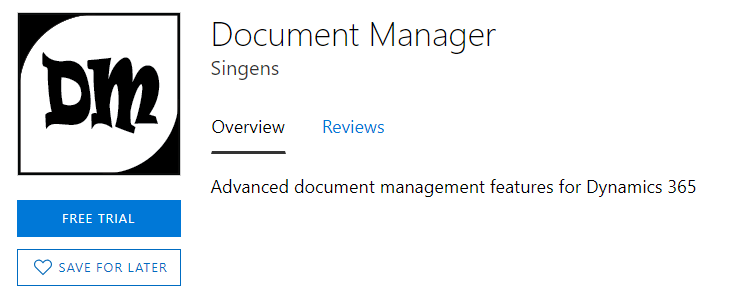
Find Document Manager in the Office Store
Document Manager is available for instillation only through the AppSource (Microsoft Store for business solutions).
You can find it here:

02
Install Document Manager
Follow the Office Store wizard and installed the add-in.

03
Admin Configuration Page
Navigate to the add-in configuration page by clicking on the Display Name of the installed solution.
The “Getting Started” link will provide you with up to date information how to configure and use the add-in.
There are three configuration steps you need to complete:
– Authentication
– Document Locations
– License

04
Authentication
Document Manager uses Azure Active Directory authentication.
When opening the Authentication page for the first time, you will be asked to Authenticated and grant the admin consent for Document Manager Azure app.
Review the requested permissions and provided consent.

05
Document Locations
Document Manager replies on the build in settings about documents in Dynamics. It reuses the values in the system lists Document Locations and SharePoint Sites.
Each entity that has documents must has corresponding system values in these lists. These system values identify the SharePoint location of the folder that contains entity’s documents.
Document Manager works in two modes:
Default: Select this mode if you have already the default integration configured. Document Manager will continue to use this setup. The newly create location will follow the default pattern.
Custom: Select this mode if you have already a custom logic about creating document locations. Document Manager won’t create any location records.

06
Choose licensing
Document Manager offers 30 days free trial with full set of features.
After that you can continue to use Document Manager only on a subscription base.Read more…

07
Add Documents Grid control on Entity’s form
Once the pervious steps are completed, you are ready to use the Documents Grid control. This control provides to the users the interactions with the documents.
Documents Grid is a HTML web resource named singens_docm.documents.html. You can add it to a entity’s form as a regular web resource.

#7.1
– Insert new section and named it Documents
– Select it and click on Insert “Web Resource”

#7.2
– Select the web resource “singens_docm.documents.html“

#7.3
– Apply formatting according to your form specifics
– Save and Publish the form
